
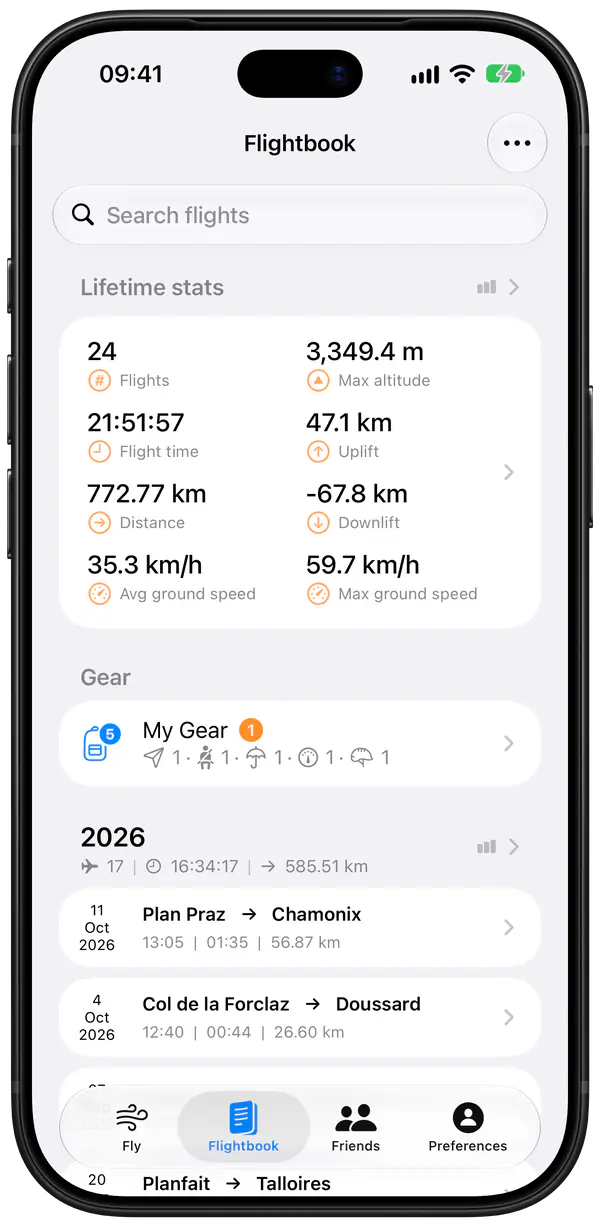
Every flight, logged by itself
Recording starts once you move faster than walking pace, about 7 km/h over the ground, for four seconds, and stops after you land. You don't touch the phone at launch and you don't forget a flight. Each one then appears in the logbook with:
- its track on the map and its charts
- the duration, the distance and the free distance
- the take-off, landing and maximum altitudes, and the height gained above take-off
- the best climb and sink rates, the ground speeds and the glide ratios
- the aircraft and the gear you flew.
Your flying in numbers
The lifetime statistics add up your flights, hours and best performances, show how they changed over the months and years, and put every place you have flown on a map. You can search the logbook, and the rankings compare your statistics with your friends'.
Charts and 3D replay
Open a flight to see its charts: altitude, ground speed, sink rate and glide ratio. Touch a chart to read the value at any moment of the flight.
Or replay the flight in 3D over the terrain. Slide along the timeline to see the flight's statistics at each moment, or let Wingman play it back by itself, at the speed you choose, with an automatic, hybrid or free camera. You can replay your friends' flights in 3D too.
Bring in your old flights
- IGC and GPX files. Import flights recorded by your vario or another app, several files at once.
- Flights without a track. Add a flight by hand, for example from a paper logbook.
- Corrections. Trim the start or the end of a flight, or merge a flight that was split in two.
Export and upload
- XContest and DHV-XC. Upload a flight to XContest from its page, and to DHV-XC by hand or automatically after each flight. Wingman's IGC files are digitally signed, and both servers accept them.
- Files. Export a flight or a selection of flights as IGC, GPX, KML or CSV files. KML files open in Google Earth, in one colour or coloured by ground speed or sink rate.
- The whole logbook. Export it as a CSV file for Excel or Numbers, with the columns you choose in the order you choose, for example to renew a licence or for your club.
- Social media. Share a summary of a flight as an image, or export it as a 3D video.
Backed up and in sync
The logbook is backed up online to your Wingman account and synced between your iPhone and iPad. Flights recorded on the Apple Watch go to the iPhone after landing.
A logbook for your gear
List your wings, harnesses, reserves and instruments and assign them to your flights: Wingman counts the flights and hours on each. Log maintenance such as a reserve repack, with a reminder when the next one is due.
Whatever you fly
Add your wing or glider in Preferences > Crew & Gear > My Gear, with its manufacturer, model and type, and turn on “Use on new flights”: every new flight is saved with that type, whether it’s a paraglider, paramotor, hang glider or rigid wing, sailplane, ultralight or hot air balloon.
Questions
Can I import the flights from my vario?
Yes, if it saves IGC or GPX files, as most varios and flight apps do. Put the files on your iPhone or in iCloud Drive, then in the logbook choose Add flight from… and GPX/IGC file(s). You can select several files at once.
Does it work with only the Apple Watch?
Yes. The Watch records the flight with its own GPS and sends it to the iPhone after landing, where it goes into the logbook.
Can I print my logbook?
Export it as a CSV file and open it in Excel or Numbers. From there you can print it or save it as a PDF.