
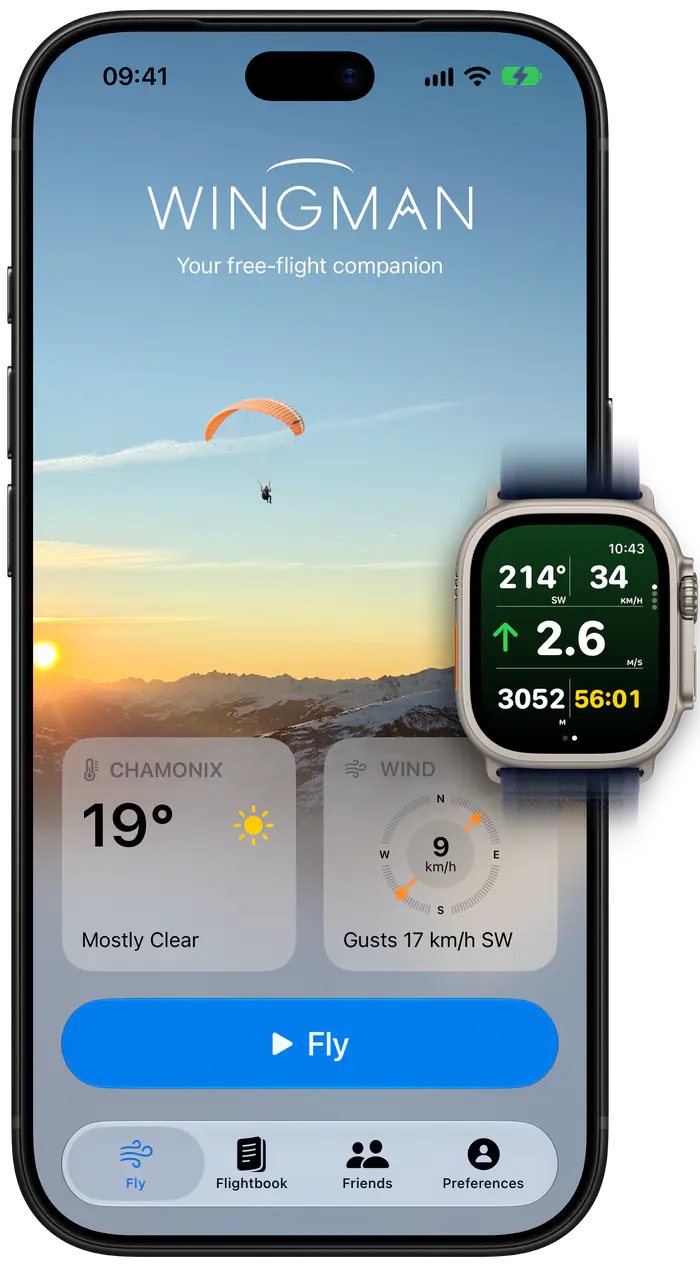
The Apple Watch app
The Watch app is a full instrument, not a second screen for the phone. It records the flight with the Watch's own GPS, runs the vario and detects take-off and landing, so you can fly with the Watch alone and leave the phone in the pack. After landing, the flight goes to the iPhone or iPad, where you can replay it in 3D and look at the map, statistics and charts.
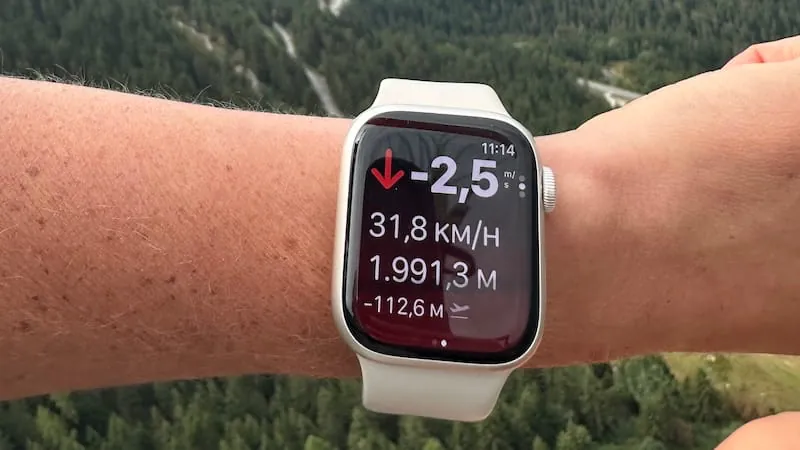
- Vario on the wrist. Vario tones and haptic feedback on the wrist.
- Four flight pages. One shows heading, ground speed, vario, altitude and flight time at once, the other three one large value above three lines. You choose the pages and what each slot shows, from ten values: vario, ground speed, altitude, height above take-off, flight time, heart rate, heading, glide ratio, distance flown and maximum altitude.
- Same settings as on the iPhone. The vario and other settings you change in Wingman on the iPhone are synced to the Watch.
- Live tracking. People can follow you when the Watch is online, through the iPhone or on its own if it is a cellular model.
Pilots fly with the Watch alone on hike-and-fly days and short evening flights, and wear it as a backup next to a phone or a dedicated vario. More about Wingman on Apple Watch.
In flight
Vario
The vario combines the barometer and the accelerometer of the iPhone or the Watch, so it reacts quickly, and it works with the phone in a pocket. You can set:
- the climb rate at which the beeps start, and the one at which they stop
- a continuous sink tone that changes with your sink rate, with its own start and stop values
- a sink alarm that warns you when you are losing height too fast
- the pitch and cadence of the beeps at each vertical speed.
The sound can be on or off by default, and you can switch it during a flight.
Flight instruments
The flight screen shows a map with your position, your heading and the friends flying near you, with the instruments around it: vario, ground speed, altitude above sea level and above take-off, glide ratio, distance, time since take-off, and your position relative to airspaces. Each instrument can have its own unit, so altitude can be in feet while ground speed stays in km/h.
On the iPhone and iPad, the wind estimator works out the wind direction and speed from your drift: turn a full circle and it has measured it in every direction. The thermal viewer colours your track on the map where you were climbing, which shows you where the thermals were.
Automatic take-off and landing detection
Recording starts by itself once you move faster than walking pace, about 7 km/h over the ground, for four seconds, and stops after you land. You don't have to touch the phone at launch, and you don't forget to record a flight. You can still start a flight by hand, and trim its start or end afterwards.
Airspaces
Nearby airspaces are drawn on the flight map. When you are close to one or inside it, an instrument shows your vertical position relative to it, and Wingman can warn you on screen and with a sound when you get too close. You set the display and the alerts in Preferences > Airspaces, and can switch them on or off during a flight.
Waypoints and routes
Build a route from waypoints in Preferences > Waypoints editor, or scan a task's XCTrack QR code with the camera to import it. Choose the route before take-off and it appears on the flight map. You can share a route as an XCTrack QR code too.
Bluetooth varios and GPS
If you already fly with a Stodeus, Syride or XCTracer instrument, pair it once in Preferences > External devices. At the start of each flight you then choose whether Wingman records with its sensors or with the phone's. XCTracer devices can also send wind data.
Live tracking
Your Wingman friends see where you are in the app. For everyone else, send a web link that shows your position live for 24 hours or until you land. Wingman can also send your position to PureTrack and to the FFVL's tracking. The Apple Watch shares your position too when it is online.
After the flight
Logbook
Every flight goes into the logbook with its track on the map, its statistics and charts, the aircraft and the gear you flew. You can search the logbook, see your lifetime statistics and a map of every place you have flown. It is backed up online to your Wingman account and synced between your iPhone and iPad.
Flights export as IGC, GPX or KML files. IGC files are digitally signed, and XContest has accepted them since December 2025. KML files open in Google Earth, in a single colour or coloured by ground speed or sink rate. You can also export the whole logbook at once, for example to renew a licence, and import flights from IGC or GPX files.
3D replay and video
Replay any flight over the terrain in 3D and slide along the timeline to see the flight's statistics at each moment. Or let Wingman play it back by itself, at the speed you choose, with an automatic, hybrid or free camera. Then export it as a 3D video with your track and flight statistics, in portrait for social media or in landscape.
Friends
Add your flying friends to see their logbooks and replay their flights in 3D. Rankings and medals compare your lifetime statistics with theirs, and in flight, friends nearby show up on your map. After landing, you can share a summary of the flight as an image on social media or in any messaging app.
Gear
List your wings, harnesses, reserves and instruments, assign them to your flights, and see the flights and hours on each. Log maintenance such as a reserve repack, with a reminder when the next one is due.
Who it's for
Wingman works whatever you fly. Set your aircraft type in Preferences > Pilot and Equipment, and every new flight is saved with it:
- paragliders
- paramotors (PPG): Wingman for paramotor pilots
- hang gliders and rigid wings: Wingman for hang glider pilots
- sailplanes
- ultralights
- hot air balloons.
Devices and languages
- iPhone and iPad with iOS 15.4 or later, which means an iPhone 6s or newer.
- Apple Watch with watchOS 10 or later: Series 4 or newer, SE or Ultra.
- App languages: English, French, German, Spanish, Portuguese, Italian, Czech, Turkish, Japanese and Simplified Chinese.